Turn Your Mac Intoan AirPlay Display
MirrorDrop is a free AirPlay receiver for Mac. Mirror your iPhone or iPad screen wirelessly and stream audio in real-time — no Apple TV required.
Only ~4 MB · No install wizard
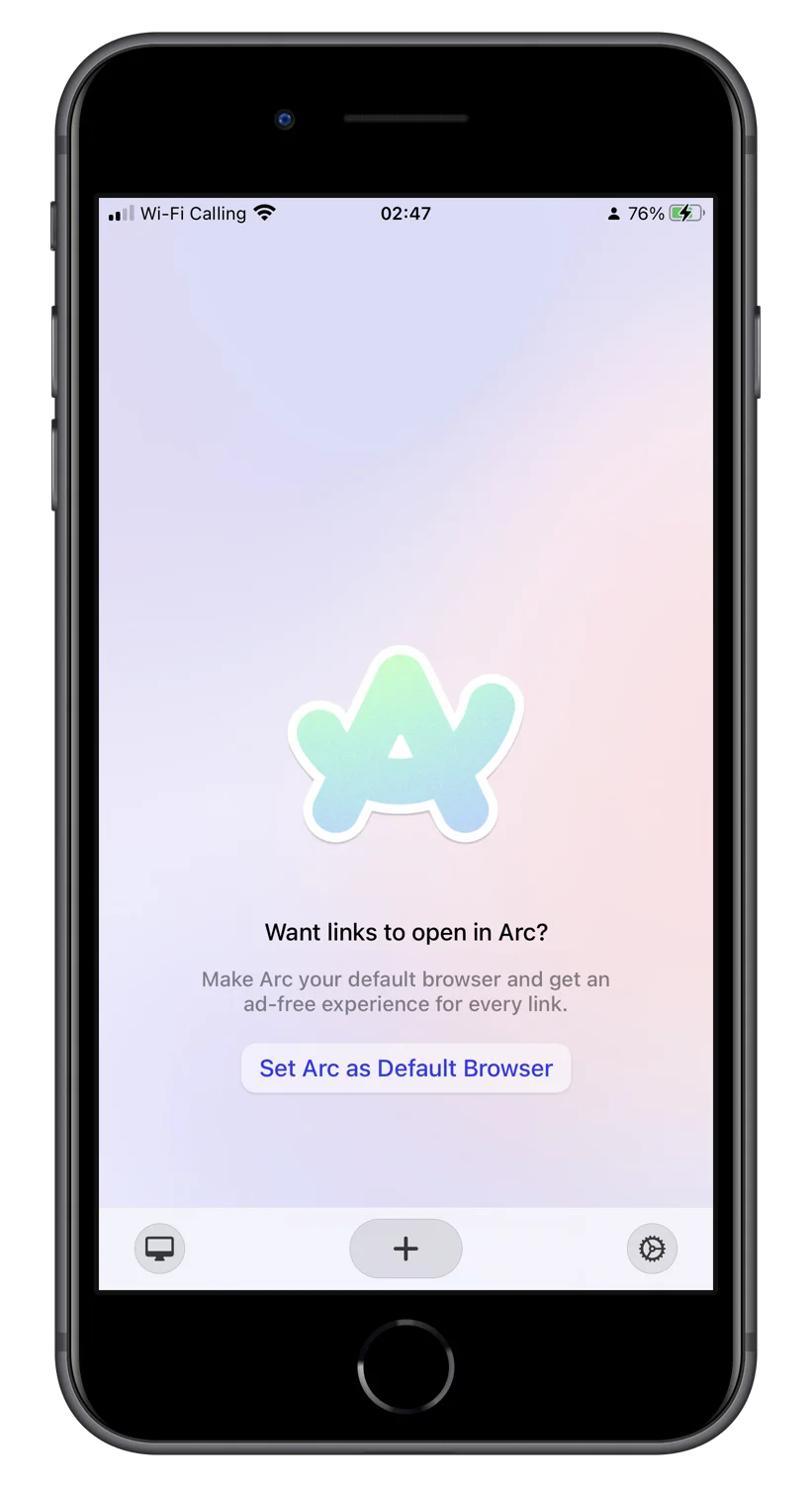
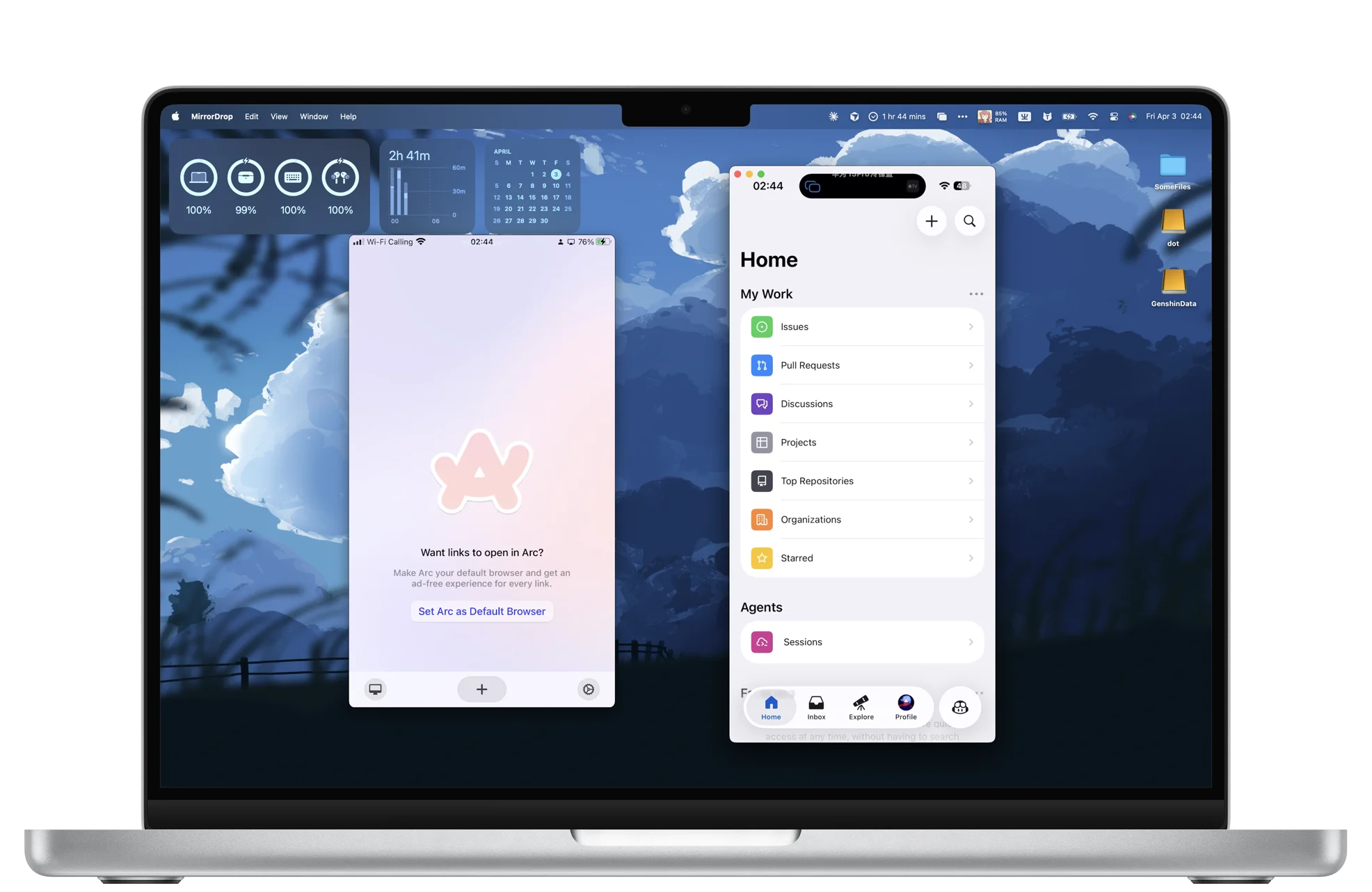
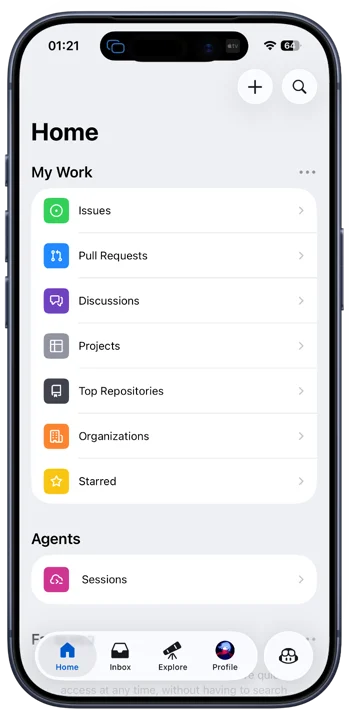
Everything Just Works
Simple, fast, and reliable — the way it should be.
Screen Mirroring
Cast your iPhone or iPad screen to your Mac in real time. Perfect for presentations, demos, and gaming.
Multi-Device
Mirror up to 4 iOS devices to your Mac simultaneously with Pro. Compare apps side by side or demo on different devices at once.
Audio Streaming
Stream music and audio from your iOS device directly to your Mac's speakers. Audio stays perfectly in sync with the mirrored video.
Zero Configuration
Just launch MirrorDrop and your Mac appears as an AirPlay target. No pairing, no setup, no hassle.
Low Latency
Hardware-accelerated video decoding keeps latency under 100ms on local Wi-Fi. Fast enough for live demos and real-time interaction.
Native Performance
Built with Swift and hardware-accelerated decoding. Light on resources, smooth on performance.
Three Steps. That's It.
Launch MirrorDrop
Open the app on your Mac. It sits quietly in your menu bar.
Connect from iPhone
Open Control Center on your iOS device, tap Screen Mirroring, and select your Mac.
Start Mirroring
Your iPhone screen appears on your Mac instantly. Resize the window or go full-screen — it's that simple.
First Launch on macOS
macOS Gatekeeper may show a prompt for apps downloaded outside the App Store. Just a quick one-time setup and you're good to go.
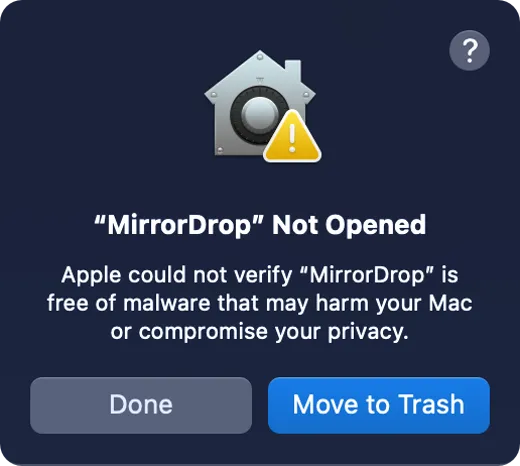
Gatekeeper Prompt
On the first launch, macOS will show a security prompt — this is standard for apps distributed outside the App Store. Simply click "Done" to continue.
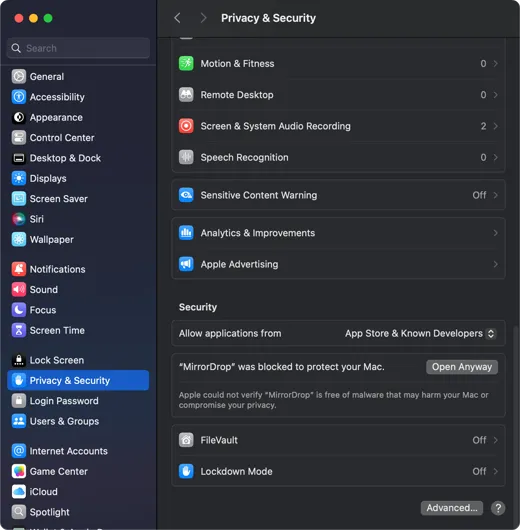
Allow in Settings
Open System Settings → Privacy & Security, scroll to the Security section, and click "Open Anyway" next to MirrorDrop.
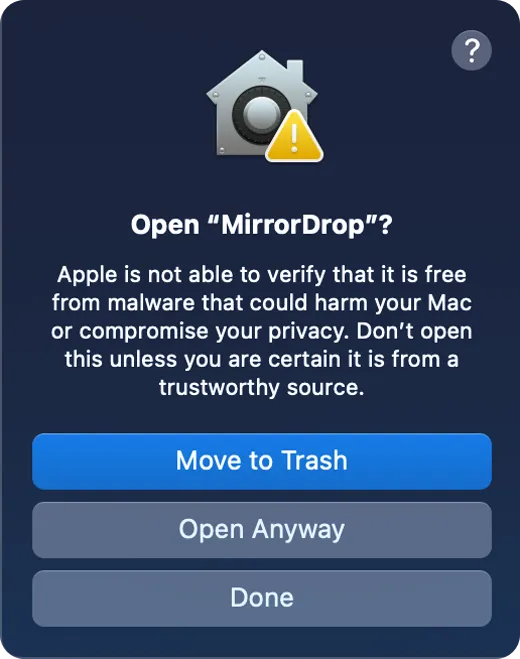
You're All Set
Confirm once more in the dialog and MirrorDrop launches. This is a one-time step — future launches work instantly.
Simple, Honest Pricing
Free
- Screen mirroring up to 720p
- Audio streaming
- Single device mirroring
- MirrorDrop watermark
Pro
One-time purchase
Introductory price — reverts to $9.99 after launch period
- Screen mirroring up to 4K
- Audio streaming
- Up to 4 devices simultaneously
- No watermark
- Priority updates
Common Questions
What is MirrorDrop?
MirrorDrop is a free AirPlay receiver for Mac that turns your Mac into a wireless display. It lets you mirror your iPhone or iPad screen to your Mac in real time, with audio streaming included. Built natively with Swift and hardware-accelerated decoding, it runs as a lightweight menu bar app and requires no Apple TV or additional hardware.
Is MirrorDrop really free?
Yes. The free version supports screen mirroring at up to 720p resolution with a small watermark. For those who need higher quality, MirrorDrop Pro removes the watermark and supports up to 4K resolution for a one-time purchase — currently $4.99 as a launch offer (regular price $9.99). No subscription required.
How is MirrorDrop different from using an Apple TV?
MirrorDrop runs directly on your Mac — no additional hardware needed. With an Apple TV, you need a separate device connected to an external display. MirrorDrop turns your Mac itself into the AirPlay target, which is ideal for presentations, app demos, screen recording via Mac capture tools, and developers testing iOS apps on a larger screen.
Which devices are compatible with MirrorDrop?
MirrorDrop requires macOS 13.0 (Ventura) or later and works on both Apple Silicon and Intel Macs. Any iPhone or iPad that supports AirPlay screen mirroring can connect — this includes most devices running iOS 14 or later. Both devices must be on the same Wi-Fi network.
Does MirrorDrop work without Wi-Fi?
MirrorDrop requires both your Mac and iOS device to be on the same Wi-Fi network. AirPlay uses the local network for device discovery and video/audio streaming. An internet connection is not required — only a shared local network between the devices.
Can I mirror multiple devices at the same time?
The free version supports one device at a time. With MirrorDrop Pro, you can mirror up to 4 iOS devices to a single Mac simultaneously. This is useful for comparing apps side by side, running multi-device demos, or monitoring multiple screens during presentations.
Ready to Try?
Download MirrorDrop and start mirroring in seconds.
Download for MacRequires macOS 13.0 or later